Microsoft Office can be activated in two ways: Online Activation and Phone Activation.
Online activation is the quickest method, as it connects to Microsoft’s servers automatically and completes in seconds, provided your internet connection is stable, and the key is valid for online use.
Phone activation, on the other hand, is used when a product key is specifically designed for it, or when online activation is unavailable. This guide covers phone activation, which is required when online activation is unavailable or when the key type specifically requires it.
Follow the steps below to activate your Microsoft Office using the product key provided by IT Guy:
Step 1: Open Office
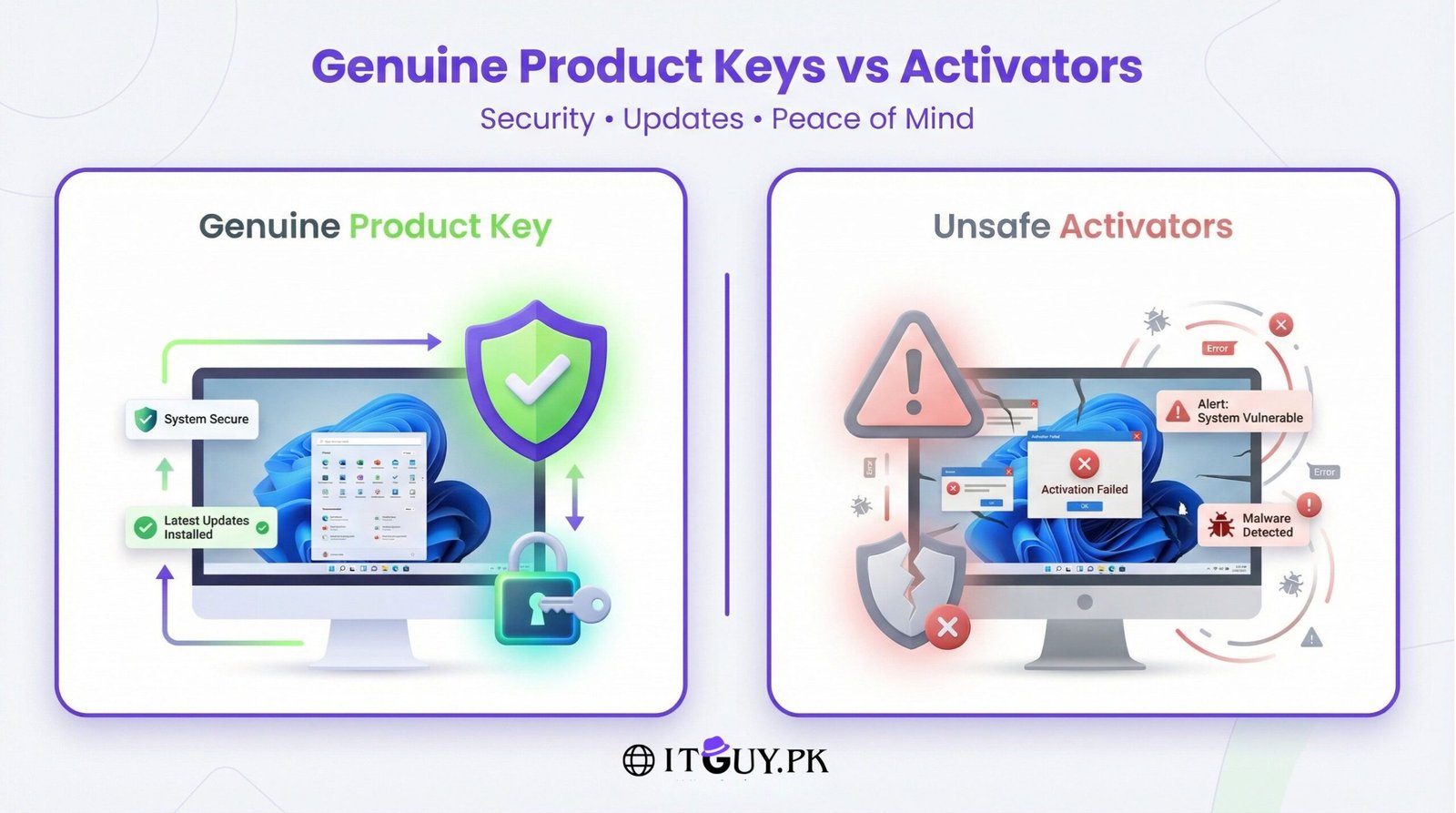
Buy an original MS Office Product Key from the IT Guy at the best price for your peace of mind.
-
Run any Office application such as Word or Excel.
-
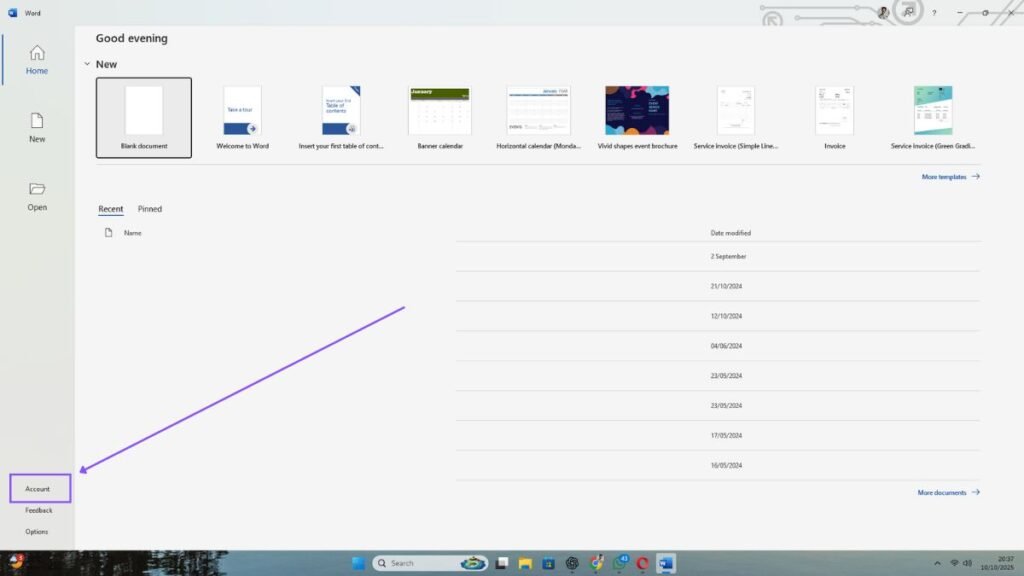
Click on the File menu, then select Account (or Help, depending on your version).
-
Click on Activate Product or Change Product Key.
Step 2: Enter the Product Key
-
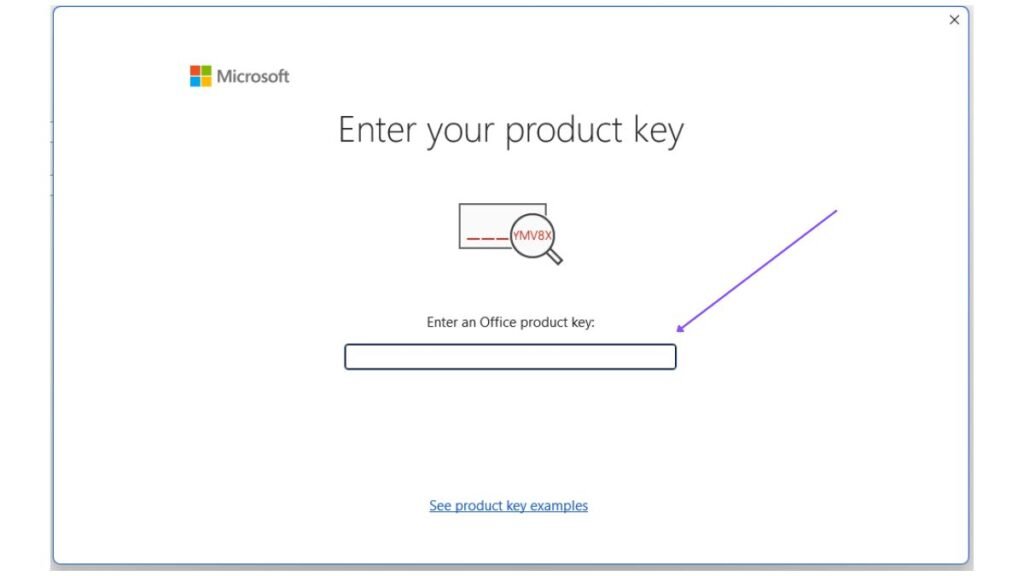
Enter the product key you received from the IT Guy.
-
Click on Activate.
-
You may now see a message that Office is not activated — this is normal.
Don’t close the window. Simply proceed to the next step to complete activation via phone.
Step 3: Choose Phone Activation
-
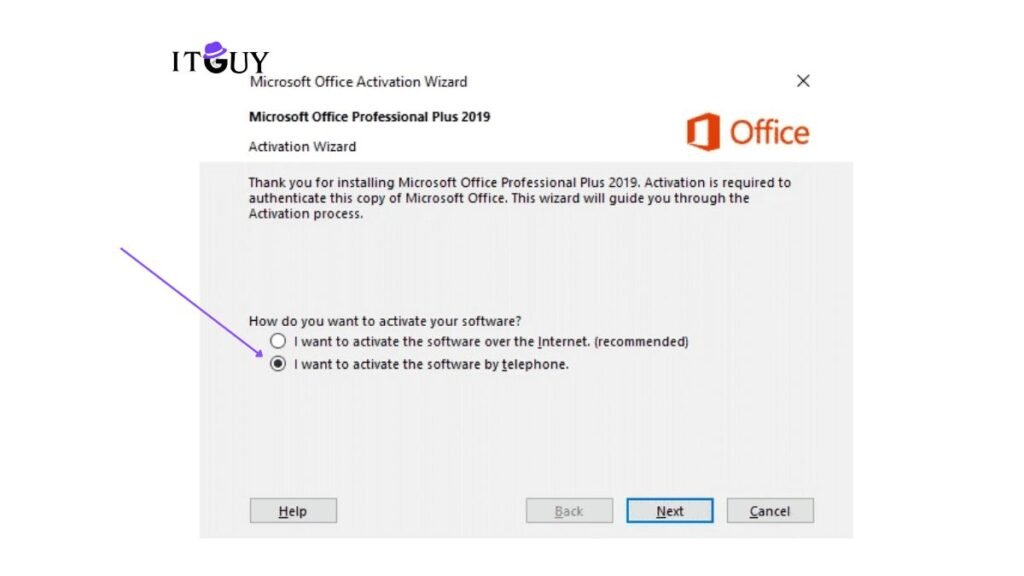
Click on Activate Product again.
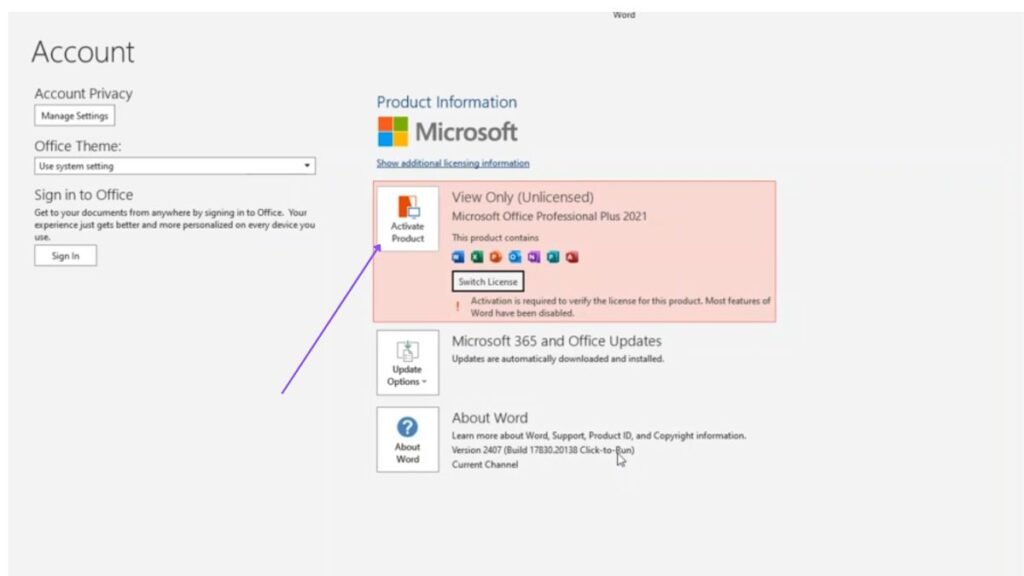
- Select I want to activate the software by telephone.
-
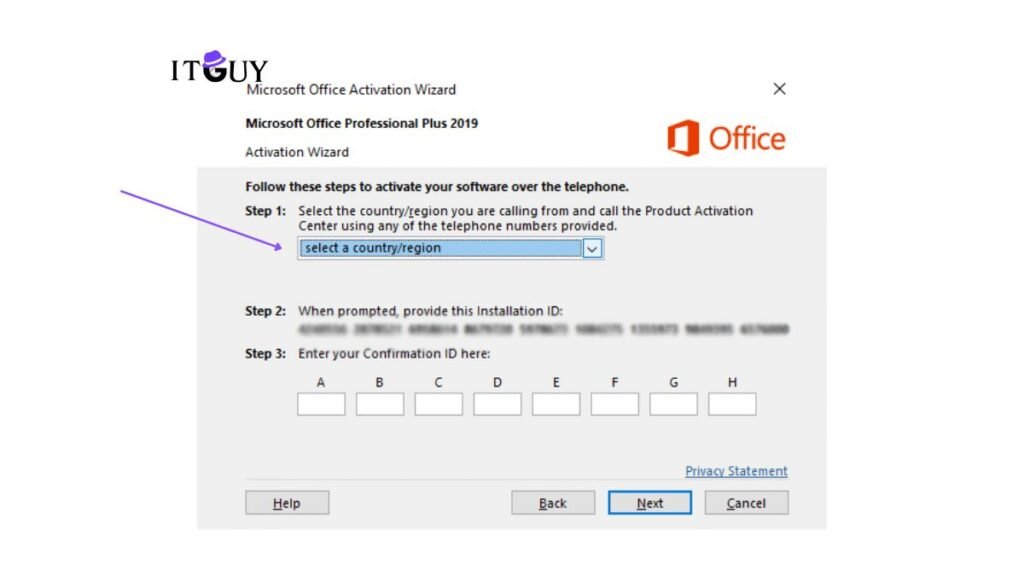
Choose your country or region (e.g., Pakistan).
-
You will now see an Installation ID (a series of numbers on your screen).
Step 4: Contact IT Guy for Confirmation ID
-
Copy or take a clear screenshot of your Installation ID.
-
Send it to our support team on WhatsApp for verification and activation assistance. Our team is available during business hours and typically responds within minutes on working days.
Step 5: Enter the Confirmation ID
-
Once you receive the Confirmation ID from our support team, enter it in the required boxes.
-
Click Next to complete the activation.
Your Microsoft Office is now successfully activated and ready to use. If activation fails, double-check the Confirmation ID entry and ensure all boxes are filled correctly before clicking Next.